Issuing Orders
| Audience: | Purchasing Department |
| Last Reviewed: | 27 January 2026 |
| Introduction: | This topic explains how to issue an order to a supplier |
| See also: | Rolling back Orders |

After a member of the technical team has approved a supplier's quote, a member of the purchasing department can issue the order to the supplier.
If an order has not been received by a supplier, it can also be reissued.
This functionality if not available for the Fleet Managers & Superintendents

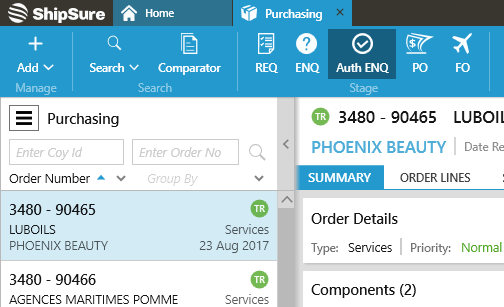
- Ensure that an order at the Authorised Enquiry stage has been selected (PO stage for Re-Issue), then from the list of orders listed in the Purchasing grid, select the order to be issued. These orders have a status of TR (PO's can be at any stage for Re-Issue).
- In the [Quick Actions] section at the top of the screen or by selecting the Delivery Tab, click on the Issue Ordericon.
- The user is then presented with five options to select from for where to send the order:
- Position List : The position list will appear. Select a Port for the list provided, then select a suitable agent or search for another Agent and then the Delivery address.
- Agent
 The Company’s representative at a port. They handle all issues relating to crew, taxes, customs and, when required, delivery of goods and services to the vessel.
Payments to agents are handled outside the Purchasing module under the Agents’ Disbursements account code.: Start to type in the name of the Agent and search or click on the [...] to search for an Agent by country
The Company’s representative at a port. They handle all issues relating to crew, taxes, customs and, when required, delivery of goods and services to the vessel.
Payments to agents are handled outside the Purchasing module under the Agents’ Disbursements account code.: Start to type in the name of the Agent and search or click on the [...] to search for an Agent by country - Warehouse Location where goods are stored until sent to the vessel.: Search for the warehouse to be used, then select from the list of available delivery addresses.
- Dispatch Direct An option that can be used to deliver goods directly to the vessel. : The Freight code, Supplier and Freight carrier details will automatically appear on screen
- Delivery to be confirmed Option that is selected when issuing an order when the delivery port or vessel destinatiion is unknown: A Delivery date must be entered, the Lead time will default to that previously entered at the Enter Quote stage and Notes can be entered too. The delivery details can be added to the [Delivery] tab of the order later.
- On the [Next] page, the lead time (also known as ex-works days) is taken from the suppliers quote. A delivery date must be entered. The lead date is taken from the suppliers, the mode of transport and any additional notes.
- For all orders, if the delivery date does not take the lead time into account, a warning will be displayed.
- If the chosen "agent" in the previous step and the delivery date falls outside the ship's arrival / departure date into port, a warning will be displayed.
- On the next page, the summary provides an overview of all the information. Click Finish to complete the order.
- A message will display confirming the order.
- Finally, select how to send the order to the supplier (i.e. fax or email). If "Email" is selected, additional email addresses can be added into the CC field (add a ";" symbol between multiple addresses) if required.
If changes are made to an order after it has been issued it to the supplier, it can be reissued. Similarly, the order can be reissued if the supplier did not receive it.
This applies to orders at the PO stage at with any status.
By selecting the Delivery tab of the selected order and then clicking on the  icon the order is resent to the supplier
To reissue an order, follow the same steps in Issuing an order.
What next?
Depending on the order, a freight order might be required.
Record received orders when the supplier has delivered the order.
Orders can also be rolled back to the Enquiry stage if required.
FAQs
The order may require additional authorisation (e.g. because the vessel's limit has been exceeded) or because the user doesn't have sufficient permissions to issue an order.
When further authorisation is required, the Summary Tab will have Awaiting further authorisation display in red.